> ## Documentation Index
> Fetch the complete documentation index at: https://www.1password.dev/llms.txt
> Use this file to discover all available pages before exploring further.
# Use 1Password to securely authenticate the AWS CLI
export const name_0 = "AWS"
export const Gethelp = ({command, img, name}) => {
return <>
Inspect your configuration
To inspect your current {name} configuration:
1Password CLI will return a list of the credentials you've configured to use with {name} and their default
scopes, as well as a list of aliases configured for {name}.
<>
{img &&
}
Clear your credentials
To reset the credentials used with {name}:
You can clear one configuration at a time, in this order of precedence:
Terminal session default
Directory default, from the current directory to $HOME
Global default
For example, if you're in the directory $HOME/projects/awesomeProject and you have a terminal
session default, directory defaults for $HOME and $HOME/projects/awesomeProject, and a
global default credential configured, you would need to run op plugin clear {command} four times to
clear all of your defaults.
To clear your global default credentials, terminal session default, and the defaults for your current directory
at the same time, run op plugin clear {command} --all.
Sign in to the 1Password account you want to use with the {name} plugin:{" "}
If you only want to configure the plugin in a specific directory, change to that directory.
Run the command to set up the plugin:
You'll be prompted to import your {name} credentials into 1Password or select an existing 1Password item where
your credentials are saved, then configure when the credentials should be used.
<>
{img1 &&
}
Step 1.1: Import or select an item
Import a new item
If you haven't saved your {name} credentials in 1Password yet, select Import into 1Password.
Enter your credentials, choose a name for the new 1Password item, and select the vault where you want to save
it.
If 1Password detects your credentials in your local development environment, you'll be prompted to import them
automatically.
<>
{img2 &&
}
Select an existing item
If you've already saved your {name} credentials in 1Password, select Search in 1Password.
You'll see a list of related items and the vaults where they're saved. If you don't see your credentials, select{" "}
Expand search to browse all items in your account.
<>
{img3 &&
}
Step 1.2: Set default credential scope
After you select or import your credentials, you'll be prompted to configure when to use the item to
authenticate {name}.
<>
{img4 &&
}
"Prompt me for each new terminal session" will only configure the credentials for the
duration of the current terminal session. Once you exit the terminal, the default will be removed.
"Use automatically when in this directory or subdirectories" will make the credentials the
default in the current directory and all of its subdirectories, as long as no other directory-specific
defaults are set in them. A terminal-session default takes precedence over a directory-specific one.
"Use as global default on my system" will set the credentials as the default in all terminal
sessions and directories. A directory-specific default takes precedence over a global one.
;
};
export const Small = ({children}) => {
return {children};
};
The AWS shell plugin allows you to use 1Password to securely authenticate [the AWS CLI ](https://aws.amazon.com/cli/) with your fingerprint, Apple Watch, or system authentication, rather than storing your credentials in plaintext.
Follow the instructions to configure your default credentials and source the `plugins.sh` file, then you'll be prompted to authenticate the AWS CLI with biometrics.
If you use `cdk`, you can also set up the [AWS CDK Toolkit shell plugin](/cli/shell-plugins/aws-cdk-toolkit/). If you use `eksctl`, you can set up the [eksctl shell plugin](/cli/shell-plugins/eksctl/).
## Requirements
1. [Sign up for 1Password.](https://1password.com/pricing/password-manager)
2. Install and sign in to 1Password for [Mac](https://1password.com/downloads/mac) or [Linux](https://1password.com/downloads/linux).
3. Install [1Password CLI](https://app-updates.agilebits.com/product_history/CLI2) 2.9.0 or later.
If you've already installed 1Password CLI, learn how to update your installation.
4. [Integrate 1Password CLI with the 1Password app](/cli/get-started/#step-2-turn-on-the-1password-desktop-app-integration).
5. Install [the AWS CLI. ](https://docs.aws.amazon.com/cli/latest/userguide/getting-started-install.html)
After you install the AWS CLI, make sure you have an AWS config file at `~/.aws/config` on Mac or Linux, or `C:\Users\USERNAME\.aws\config` on Windows. If you don't have a config file:
1. Use [`aws configure` ](https://docs.aws.amazon.com/cli/latest/reference/configure/) to create one.
2. When prompted, skip entering your AWS access key pair to avoid writing your credentials on disk in the `.aws/credetials` file.
The following shells are supported:
* Bash
* Zsh
* fish
## Before you begin: Create and save an AWS access key
If you've already created an AWS access key, [skip to Step 1](#step-1-configure-your-default-credentials).
If you haven't created an access key yet, you can create one and use the [1Password browser extension](https://support.1password.com/getting-started-browser/) to quickly save it in 1Password:
1. Open and unlock [1Password in your browser](https://support.1password.com/getting-started-browser/).
2. [Follow the steps](https://docs.aws.amazon.com/IAM/latest/UserGuide/id_credentials_access-keys.html?icmpid=docs_iam_console#Using_CreateAccessKey) to create an access key for the AWS CLI.
3. On the "Retrieve access keys" page, select **Show** to reveal the secret access key.
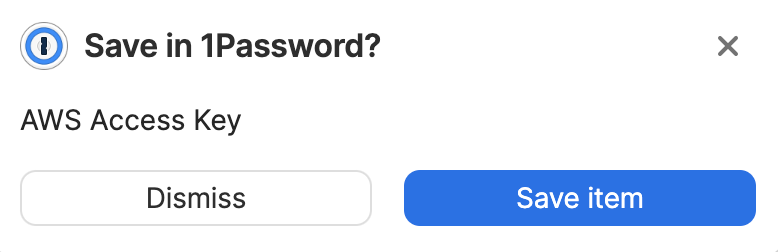
4. Select **Save item** when 1Password asks if you want to save an item for the AWS access key.
5. Choose the vault where you want to save the item, edit the item's name and details, then select **Save item**.
## Step 1: Configure your default credentials
**If you use AWS in multiple environments**
If you want to use the AWS shell plugin in multiple environments, like production and development, [learn how to set up your plugin for seamless context switching](/cli/shell-plugins/environments/).
## Step 2: Source the plugins.sh file
To make the plugin available, source your plugins.sh file. For example:
The file path for your op folder may vary depending on your configuration directory. op plugin init will output a source command with the correct file path.
If this is your first time installing a shell plugin, you'll also need to add the source command to your RC file or shell profile to persist the plugin beyond the current terminal session. For example:
> ~/.bashrc && source ~/.bashrc`} />
> ~/.zshrc && source ~/.zshrc`} />
> ~/.config/fish/config.fish && source ~/.config/fish/config.fish`} />
## Step 3: Use the CLI
## Step 4: Remove imported credentials from disk
After you save your AWS credentials in 1Password, you can remove all local copies you currently have stored on disk.
Plaintext access keys are commonly stored in your AWS [shared credentials file ](https://docs.aws.amazon.com/sdk-for-net/v3/developer-guide/creds-file.html) (default location: `~/.aws/credentials`). If you remove your credentials from this file, make sure to configure shell plugins for any other tools that use the file to authenticate to AWS, like [Terraform](/cli/shell-plugins/terraform/).
## Optional: Assume multiple roles
You can use the AWS shell plugin to assume multiple roles in the same way you'd assume roles with the AWS CLI, by defining role profiles [in your AWS config file. ](https://docs.aws.amazon.com/cli/latest/userguide/cli-configure-role.html#cli-role-prepare) For example:
```html ~/.aws/config theme={null}
[profile prod]
role_arn = arn:aws:iam::123456789012:role/prod
source_profile = wendyappleseed
```
Then include the `--profile` flag to call an AWS command using a role. For example:
```shell theme={null}
aws sts get-caller-identity --profile prod
```
If you want to always use the same profile, you can set the `AWS_PROFILE` environment variable. In that case, the `--profile` flag would only be needed to override the default set in the environment. For example:
```shell theme={null}
export AWS_PROFILE=prod
```
## Optional: Set up multi-factor authentication
If you use [multi-factor authentication ](https://docs.aws.amazon.com/IAM/latest/UserGuide/id_credentials_mfa.html) with AWS, you can configure the AWS shell plugin to provide your one-time password.
You can do this in two ways:
* [Add the ARN for your multi-factor authentication device to a profile in your AWS config file. ](https://docs.aws.amazon.com/cli/latest/userguide/cli-configure-role.html#cli-configure-role-mfa)
* Add the one-time password code and ARN to the item in 1Password where your AWS credentials are stored. If you choose this option, your multi-factor authentication information will be treated as your `default` profile and used globally with every other profile.
Save your one-time password and ARN in 1Password
Step 1: Save your QR code
2. Open and unlock the 1Password app.
3. Select the item where your AWS credentials are saved, then select **Edit**.
4. Select **Add More** > **One-Time Password**.
5. [Follow the steps to enable a virtual multi-factor authentication device](https://docs.aws.amazon.com/IAM/latest/UserGuide/id_credentials_mfa_enable_virtual.html) for your AWS account.
6. Select **Show secret key** in the AWS wizard, then copy the string of characters into the One-Time Password field on your item.
7. Select **Save**.
Your item will now show a one-time password that you can use to finish the AWS multi-factor authentication device set-up flow.
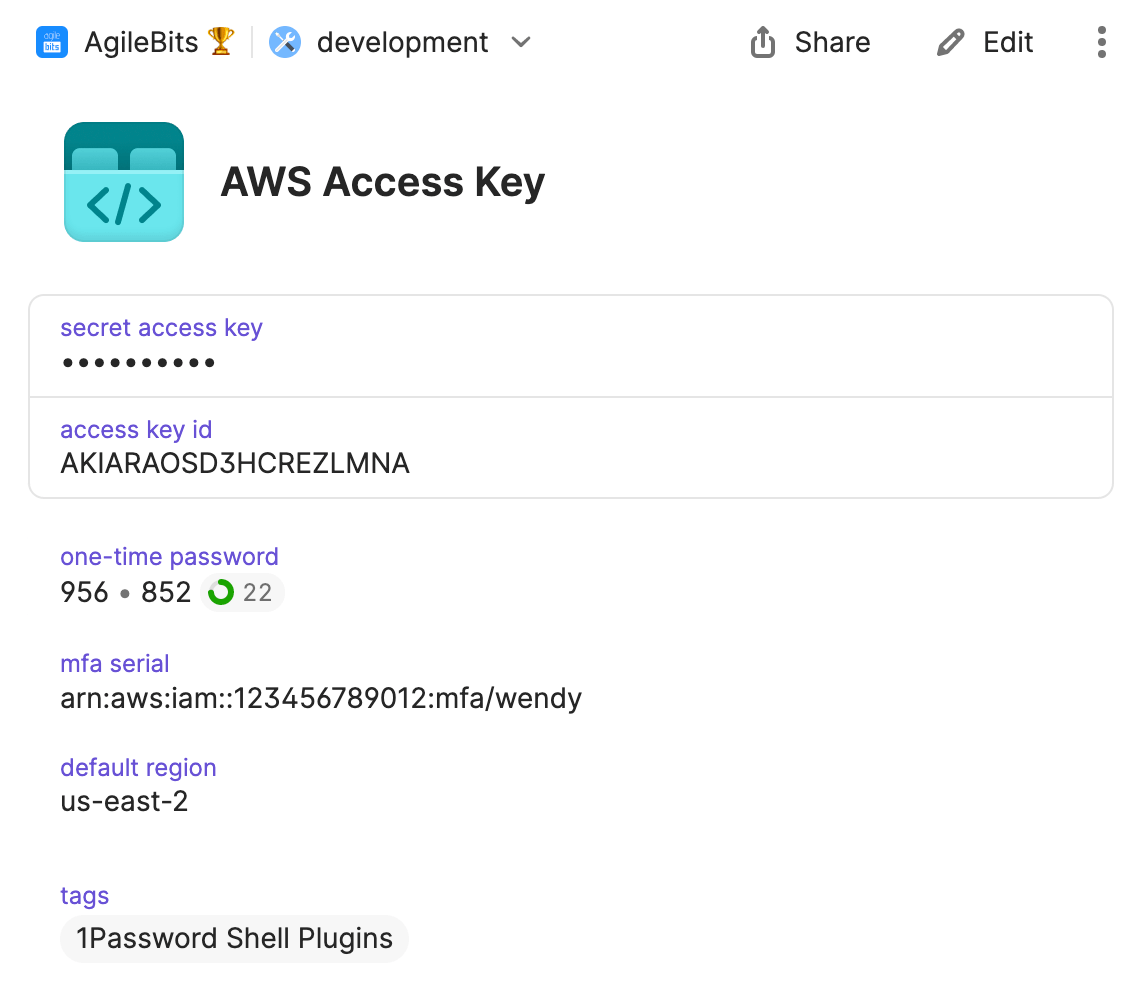
Your edited item must include the `one-time password` and `mfa serial` fields:
Step 2: Save the ARN for your multi-factor authentication device
1. Find the [ARN for your multi-factor authentication device](https://docs.aws.amazon.com/IAM/latest/UserGuide/id_credentials_mfa_checking-status.html) and copy it.
2. Open and unlock the 1Password app.
3. Select the item where you saved your AWS credentials then select **Edit**.
4. Select **Add More** > **Text**.
5. Paste the ARN as the value of the field.
6. Title the field `mfa serial`.
7. Select **Save**.
1Password CLI will detect your multi-factor authentication credentials if they're saved in fields titled `one-time password` and `mfa serial`. If your one-time password isn't detected, make sure your fields are titled correctly.
1Password CLI will then set the `AWS_SECRET_ACCESS_KEY`, `AWS_ACCESS_KEY_ID` and `AWS_SESSION_TOKEN` provisional environment variables to specify the temporary multi-factor authentication session values.
## Next steps
1Password authenticates with {name_0} by injecting environment variables with the credentials required by the plugin commands directly from your 1Password account.
If you saved your {name_0} credentials in 1Password manually rather than using op plugin to import a new item, make sure that your field names match the table below.
If the item doesn't contain a field with the required name, you'll be prompted to rename one of the existing fields.