-
Notifications
You must be signed in to change notification settings - Fork 6.3k
Add Windows install types and release channels doc + update map.csv #21119
New issue
Have a question about this project? Sign up for a free GitHub account to open an issue and contact its maintainers and the community.
By clicking “Sign up for GitHub”, you agree to our terms of service and privacy statement. We’ll occasionally send you account related emails.
Already on GitHub? Sign in to your account
Merged
Merged
Changes from all commits
Commits
Show all changes
6 commits
Select commit
Hold shift + click to select a range
a5ddd24
Add Windows install types and release channels doc + update map.csv
kanelatechnical 73c844f
Update Windows release channels doc
kanelatechnical be179af
Update windows-release-channels.md
kanelatechnical 5cc9752
Update docs/install/windows-release-channels.md
kanelatechnical a45033a
format and fixes
ilyam8 38c2bab
more fixes
ilyam8 File filter
Filter by extension
Conversations
Failed to load comments.
Loading
Jump to
Jump to file
Failed to load files.
Loading
Diff view
Diff view
Some comments aren't visible on the classic Files Changed page.
There are no files selected for viewing
This file contains hidden or bidirectional Unicode text that may be interpreted or compiled differently than what appears below. To review, open the file in an editor that reveals hidden Unicode characters.
Learn more about bidirectional Unicode characters
This file contains hidden or bidirectional Unicode text that may be interpreted or compiled differently than what appears below. To review, open the file in an editor that reveals hidden Unicode characters.
Learn more about bidirectional Unicode characters
| Original file line number | Diff line number | Diff line change |
|---|---|---|
| @@ -0,0 +1,368 @@ | ||
| # Switching Netdata Install Types and Release Channels on Windows | ||
|
|
||
| You can switch between different Netdata release channels on Windows based on your needs. This guide covers the process with step-by-step instructions. | ||
|
|
||
| ## Understanding Windows Installation Architecture | ||
|
|
||
| Unlike Linux systems where Netdata has multiple install types (native packages, static builds, Docker, etc.), **Windows only has one install type**: the **MSI installer**. | ||
|
|
||
| This simplifies the switching process significantly: | ||
|
|
||
| - No need to determine your "install type" (it's always MSI) | ||
| - No complex switching procedures between different installation methods | ||
| - MSI handles upgrades automatically | ||
|
|
||
| ### Release Channels Available | ||
|
|
||
| | Channel | Download URL | Update Frequency | Recommended For | | ||
| |-------------|-----------------------------------------------------------------------------------------|--------------------------|-------------------------------------------------| | ||
| | **Stable** | `https://github.com/netdata/netdata/releases/latest/download/netdata-x64.msi` | Major and patch releases | Production systems, most users | | ||
| | **Nightly** | `https://github.com/netdata/netdata-nightlies/releases/latest/download/netdata-x64.msi` | Daily builds | Testing, early adopters, bleeding-edge features | | ||
|
|
||
| <details> | ||
| <summary>When to Choose Each Channel</summary> | ||
|
|
||
| **Choose Stable Channel If:** | ||
|
|
||
| - You're running production systems | ||
| - You need predictable, well-tested releases | ||
| - You prefer less frequent updates (major releases only) | ||
| - You want maximum stability over cutting-edge features | ||
| - You have strict change management processes | ||
|
|
||
| **Choose Nightly Channel If:** | ||
|
|
||
| - You're testing new features before production deployment | ||
| - You want immediate bug fixes without waiting for releases | ||
| - You're contributing to Netdata development and need latest code | ||
| - You want to provide early feedback to the Netdata team | ||
|
|
||
| **Update Frequency**: Stable releases occur every few weeks to months, while Nightly builds are updated daily with every commit to the master branch. | ||
|
|
||
| </details> | ||
|
|
||
| ## Data Preservation When Switching Channels | ||
|
|
||
| When switching between release channels on Windows, the MSI installer automatically preserves your important data and configuration. | ||
|
|
||
| **Preserved during channel switches:** | ||
|
|
||
| - Configuration files (`netdata.conf`, collector configs) in `C:\Program Files\Netdata\etc\netdata` | ||
| - Historical metrics data | ||
| - Alert configurations | ||
| - Cloud connection settings (claim token, room assignments) | ||
|
|
||
| **Not preserved (by design):** | ||
|
|
||
| - Temporary cache files | ||
| - Log files older than retention period | ||
|
|
||
| :::tip | ||
|
|
||
| Unlike switching between install types on Linux, Windows channel switching does not require manual backup and restore procedures. The MSI installer handles data preservation automatically. | ||
|
|
||
| ::: | ||
|
|
||
| ## Switching Between Release Channels | ||
|
|
||
| ### Method 1: GUI Installation (Recommended) | ||
|
|
||
| <details> | ||
| <summary>Switch to Stable Channel</summary> | ||
|
|
||
| 1. **Download the Stable MSI:** | ||
| - Go to: `https://github.com/netdata/netdata/releases/latest/download/netdata-x64.msi` | ||
| - Save the file to your Downloads folder | ||
|
|
||
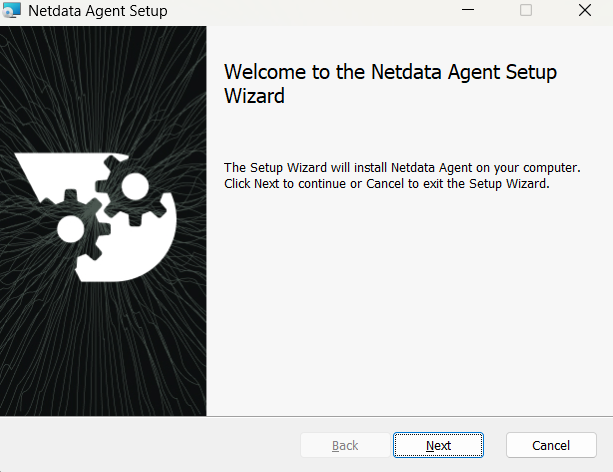
| 2. **Run the installer:** | ||
| - Double-click the downloaded `.msi` file | ||
| - Grant Administrator privileges when prompted | ||
| - Follow the installation wizard | ||
|
|
||
|  | ||
|
|
||
| 3. **Verify the installation:** | ||
| - The installer will automatically detect your existing installation | ||
| - Upgrade to the Stable channel | ||
| - Preserve your configuration and data | ||
| - Restart the Netdata service | ||
|
|
||
| </details> | ||
|
|
||
| <br/> | ||
|
|
||
| <details> | ||
| <summary>Switch to Nightly Channel</summary> | ||
|
|
||
| 1. **Download the Nightly MSI:** | ||
| - Go to: `https://github.com/netdata/netdata-nightlies/releases/latest/download/netdata-x64.msi` | ||
| - Save the file to your Downloads folder | ||
|
|
||
| 2. **Run the installer:** | ||
| - Double-click the downloaded `.msi` file | ||
| - Grant Administrator privileges when prompted | ||
| - Follow the installation wizard | ||
|
|
||
|  | ||
|
|
||
| 3. **Verify the installation:** | ||
| - The installer will automatically detect your existing installation | ||
| - Upgrade to the Nightly channel | ||
| - Preserve your configuration and data | ||
| - Restart the Netdata service | ||
|
|
||
| </details> | ||
|
|
||
| ### Method 2: PowerShell Installation (Automated) | ||
|
|
||
| :::warning | ||
| Silent installation isn't supported on Windows Server versions earlier than 2019 due to TLS compatibility issues. | ||
| Use the [GUI installer](#method-1-gui-installation-recommended) instead. | ||
| ::: | ||
|
|
||
| <details> | ||
| <summary>Switch to Stable Channel via PowerShell</summary> | ||
|
|
||
| ```powershell | ||
| # Run PowerShell as Administrator | ||
| $ProgressPreference = 'SilentlyContinue' | ||
| Invoke-WebRequest https://github.com/netdata/netdata/releases/latest/download/netdata-x64.msi -OutFile "$env:TEMP\netdata-x64.msi" | ||
| msiexec /qn /i "$env:TEMP\netdata-x64.msi" REINSTALL=ALL | ||
| ``` | ||
|
|
||
| </details> | ||
|
|
||
| <br/> | ||
|
|
||
| <details> | ||
| <summary>Switch to Nightly Channel via PowerShell</summary> | ||
|
|
||
| ```powershell | ||
| # Run PowerShell as Administrator | ||
| $ProgressPreference = 'SilentlyContinue' | ||
| Invoke-WebRequest https://github.com/netdata/netdata-nightlies/releases/latest/download/netdata-x64.msi -OutFile "$env:TEMP\netdata-x64.msi" | ||
| msiexec /qn /i "$env:TEMP\netdata-x64.msi" REINSTALL=ALL | ||
| ``` | ||
|
|
||
| </details> | ||
|
|
||
| ### Method 3: PowerShell with Cloud Connection Preserved | ||
|
|
||
| <details> | ||
| <summary>Switch Channels with Explicit Cloud Settings</summary> | ||
|
|
||
| If you want to ensure your Netdata Cloud connection is maintained during the switch, you can provide your claim token and room IDs explicitly. | ||
|
|
||
| **Get your current cloud settings:** | ||
|
|
||
| ```powershell | ||
| # Check current cloud configuration | ||
| Get-Content "C:\Program Files\Netdata\etc\netdata\cloud.d\cloud.conf" | ||
| ``` | ||
|
|
||
| Look for your `token` and `rooms` values. | ||
|
|
||
| **Switch to Stable with Cloud settings:** | ||
|
|
||
| ```powershell | ||
| # Run PowerShell as Administrator | ||
| $TOKEN = "<YOUR_CLOUD_TOKEN>" # <-- Replace with your Netdata Cloud claim token | ||
| $ROOMS = "<YOUR_ROOM_IDS>" # <-- Replace with your comma-separated Room IDs | ||
| $ProgressPreference = 'SilentlyContinue' | ||
| Invoke-WebRequest https://github.com/netdata/netdata/releases/latest/download/netdata-x64.msi -OutFile "$env:TEMP\netdata-x64.msi" | ||
| msiexec /qn /i "$env:TEMP\netdata-x64.msi" TOKEN="$TOKEN" ROOMS="$ROOMS" | ||
| ``` | ||
|
|
||
| </details> | ||
|
|
||
| ## Understanding the REINSTALL=ALL Parameter | ||
|
|
||
| The `REINSTALL=ALL` parameter is a Windows Installer (MSI) standard option that forces reinstallation of all Netdata components, ensuring a clean upgrade path. | ||
|
|
||
| **When to use REINSTALL=ALL:** | ||
|
|
||
| - **Switching channels** (Stable ↔ Nightly) - Recommended | ||
| - **Troubleshooting broken installation** - Essential | ||
| - **Upgrading within the same channel** - Optional | ||
|
|
||
| **When not to use REINSTALL = ALL:** | ||
|
|
||
| - Fresh installations (no existing Netdata) | ||
| - When you want minimal disruption (standard MSI upgrade is sufficient) | ||
|
|
||
| :::warning | ||
|
|
||
| The `REINSTALL = ALL` parameter ensures complete replacement of binaries but is not required for normal channel switches. The MSI installer handles upgrades automatically. | ||
|
|
||
| ::: | ||
|
|
||
| ## Verification: Confirm Your Channel | ||
|
|
||
| After switching channels, verify which version you're running: | ||
|
|
||
| <details> | ||
| <summary>Check via Netdata Dashboard</summary> | ||
|
|
||
| 1. Open your browser to `http: //localhost:19999` | ||
| 2. Click the **Netdata logo** in the top-left corner | ||
| 3. Look for the version number: | ||
|
|
||
| - **Stable**: `v2.1.0` (clean version number) | ||
| - **Nightly**: `v2.1.0-123-nightly` (includes commit hash) | ||
|
|
||
| </details> | ||
|
|
||
| <br/> | ||
|
|
||
| <details> | ||
| <summary>Check via PowerShell</summary> | ||
|
|
||
| ```powershell | ||
| # Get installed Netdata version | ||
| Get-ItemProperty "HKLM:\Software\Microsoft\Windows\CurrentVersion\Uninstall\*" | | ||
| Where-Object { | ||
| $_.DisplayName -like "*Netdata*" | ||
| } | | ||
| Select-Object DisplayName, DisplayVersion, Publisher | ||
| ``` | ||
|
|
||
| **Example output:** | ||
|
|
||
| ``` | ||
| DisplayName : Netdata | ||
| DisplayVersion : 2.1.0 | ||
| Publisher : Netdata Inc. | ||
| ``` | ||
|
|
||
| </details> | ||
|
|
||
| <br/> | ||
|
|
||
| <details> | ||
| <summary>Check Netdata Service Status</summary> | ||
|
|
||
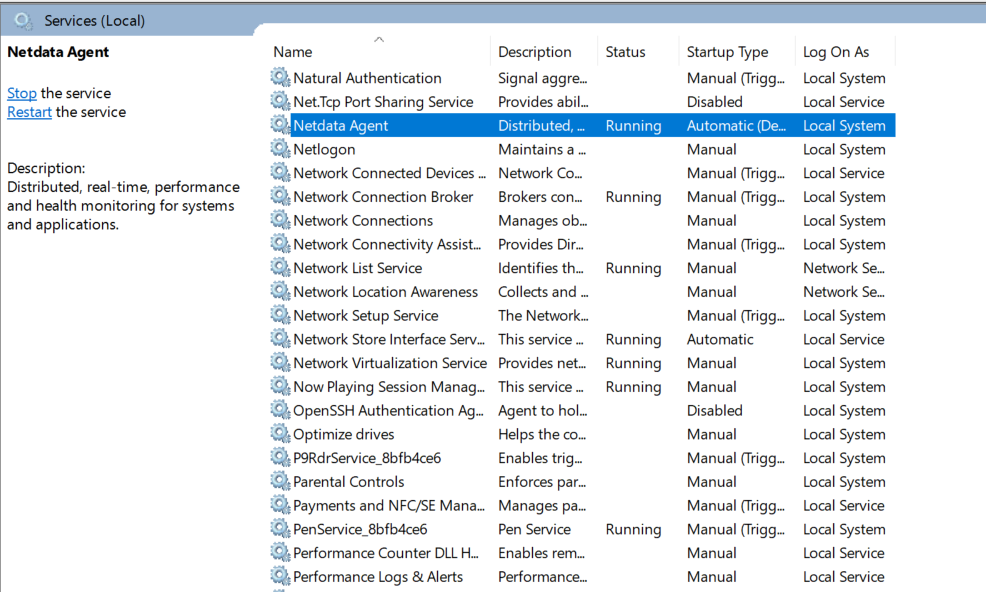
| You can also verify the Netdata service is running through the Windows Services manager: | ||
|
|
||
|  | ||
|
|
||
| Or check via PowerShell: | ||
|
|
||
| ```powershell | ||
| # Check Netdata service status | ||
| Get-Service netdata | Select-Object Name, Status, DisplayName | ||
|
|
||
| # Check service executable path | ||
| Get-WmiObject win32_service | Where-Object { $_.Name -eq 'netdata' } | Select-Object PathName | ||
| ``` | ||
|
|
||
| </details> | ||
|
|
||
| ## Troubleshooting Common Issues | ||
|
|
||
| <details> | ||
| <summary>Issue: "Another version is already installed"</summary> | ||
|
|
||
| **Symptoms**: MSI installer shows error about existing installation | ||
|
|
||
| **Solution 1**: Use the `REINSTALL=ALL` parameter explicitly: | ||
|
|
||
| ```powershell | ||
| msiexec /qn /i netdata-x64.msi REINSTALL=ALL | ||
| ``` | ||
|
|
||
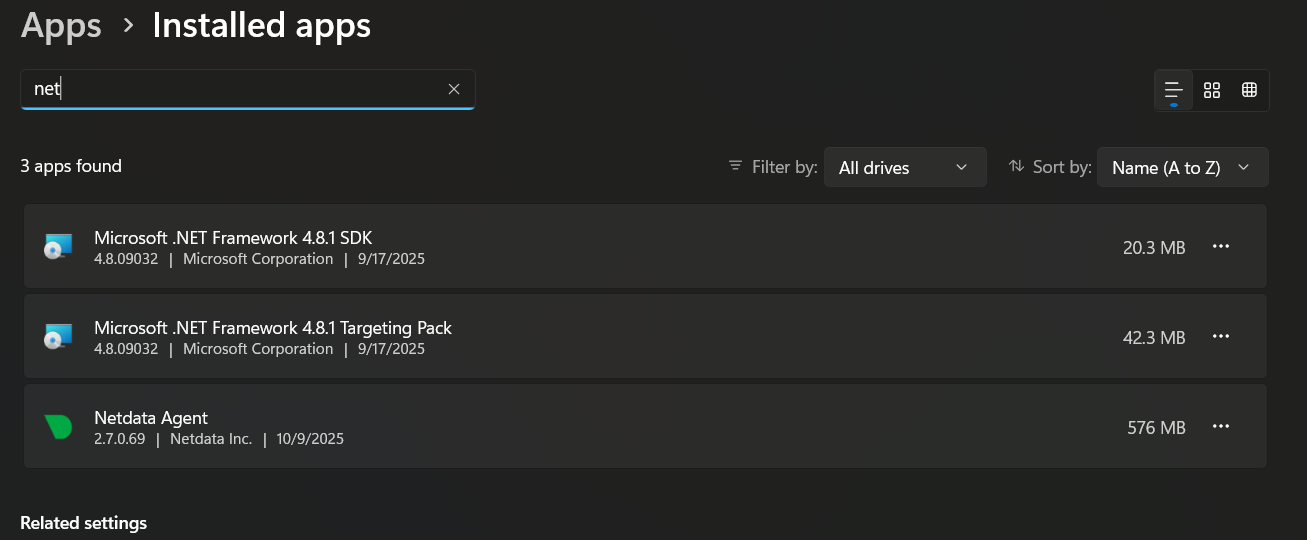
| **Solution 2**: Uninstall first via Windows Add/Remove Programs, then reinstall: | ||
|
|
||
|  | ||
|
|
||
| Or uninstall via PowerShell: | ||
|
|
||
| ```powershell | ||
| # Uninstall existing installation | ||
| msiexec /qn /x netdata-x64.msi | ||
|
|
||
| # Wait for uninstall to complete | ||
| Start-Sleep -Seconds 10 | ||
|
|
||
| # Reinstall with new channel | ||
| msiexec /qn /i netdata-x64.msi TOKEN="<YOUR_TOKEN>" ROOMS="<YOUR_ROOMS>" | ||
| ``` | ||
|
|
||
thiagoftsm marked this conversation as resolved.
Show resolved
Hide resolved
|
||
| </details> | ||
|
|
||
| <br/> | ||
|
|
||
| <details> | ||
| <summary>Issue: Cloud Connection Lost After Switch</summary> | ||
|
|
||
| **Symptoms**: After switching channels, node doesn't appear in Netdata Cloud | ||
|
|
||
| **Solution**: Reclaim the node: | ||
|
|
||
| ```powershell | ||
| # Stop Netdata service | ||
| Stop-Service netdata | ||
|
|
||
| # Remove old cloud configuration | ||
| Remove-Item "C:\Program Files\Netdata\var\lib\netdata\cloud.d\*" -Force | ||
|
|
||
| # Reinstall with claim token | ||
| msiexec /qn /i netdata-x64.msi TOKEN="<YOUR_TOKEN>" ROOMS="<YOUR_ROOMS>" REINSTALL=ALL | ||
ilyam8 marked this conversation as resolved.
Show resolved
Hide resolved
|
||
|
|
||
| # Start service | ||
| Start-Service netdata | ||
kanelatechnical marked this conversation as resolved.
Show resolved
Hide resolved
|
||
| ``` | ||
|
|
||
| You can also verify the service status in Windows Services: | ||
|
|
||
|  | ||
|
|
||
| </details> | ||
|
|
||
| <br/> | ||
|
|
||
| <details> | ||
| <summary>Issue: Service Won't Start After Switch</summary> | ||
|
|
||
| **Symptoms**: Netdata service fails to start after channel switch | ||
|
|
||
| **Solution**: Check service status and perform clean reinstall: | ||
|
|
||
| ```powershell | ||
| # Check service status | ||
| Get-Service netdata | ||
|
|
||
| # Check Windows Event Log for errors | ||
| Get-EventLog -LogName Application -Source Netdata -Newest 20 | ||
|
|
||
| # Perform clean reinstall | ||
| msiexec /qn /x netdata-x64.msi | ||
| Remove-Item "C:\Program Files\Netdata" -Recurse -Force -ErrorAction SilentlyContinue | ||
| Remove-Item "$env:PROGRAMDATA\Netdata" -Recurse -Force -ErrorAction SilentlyContinue | ||
| msiexec /qn /i netdata-x64.msi TOKEN="<YOUR_TOKEN>" ROOMS="<YOUR_ROOMS>" | ||
ilyam8 marked this conversation as resolved.
Show resolved
Hide resolved
|
||
| ``` | ||
|
|
||
| If the service still won't start, check the Windows Services manager to ensure the Netdata service is present and configured correctly: | ||
|
|
||
|  | ||
|
|
||
| </details> | ||
|
|
||
| ## Alternative: Using Windows Add/Remove Programs | ||
|
|
||
| For users who prefer the traditional Windows approach, you can also manage Netdata installations through the Windows Control Panel: | ||
|
|
||
| 1. **Access Add/Remove Programs:** | ||
| - Open Windows Settings → Apps & features | ||
| - Or search for "Add or remove programs" in the Start menu | ||
|
|
||
| 2. **Locate Netdata:** | ||
| - Find "Netdata" in the installed programs list | ||
| - Note the current version number | ||
|
|
||
|  | ||
|
|
||
| 3. **Uninstall if needed:** | ||
| - Click "Uninstall" to remove the current installation | ||
| - Then install the new channel using the MSI installer | ||
|
|
||
| This method provides a familiar Windows experience but requires manual download and installation of the new channel. | ||
Oops, something went wrong.
Add this suggestion to a batch that can be applied as a single commit.
This suggestion is invalid because no changes were made to the code.
Suggestions cannot be applied while the pull request is closed.
Suggestions cannot be applied while viewing a subset of changes.
Only one suggestion per line can be applied in a batch.
Add this suggestion to a batch that can be applied as a single commit.
Applying suggestions on deleted lines is not supported.
You must change the existing code in this line in order to create a valid suggestion.
Outdated suggestions cannot be applied.
This suggestion has been applied or marked resolved.
Suggestions cannot be applied from pending reviews.
Suggestions cannot be applied on multi-line comments.
Suggestions cannot be applied while the pull request is queued to merge.
Suggestion cannot be applied right now. Please check back later.
Uh oh!
There was an error while loading. Please reload this page.